Link to customized app
This page is still under development. Please wait for more information
Link to a customized webpage
You can create a customized webpage and use the nb-dispatch javascript library and Nucleome Bridge web browser extension to link Nucleome Browser with your webpages. Examples of customized web pages we created are shown here
Link to DCIC Jupyter notebook
The following example shows that it is possible to link the Nucleome Browser with the Jupyter notebook server provided by the 4DN DCIC. Users can process the raw 4DN data in the Jupyter notebook. Once users highlight some regions on the Nucleome Browser, the violin plot on the right will only show the genomic regions overlapping with the highlighted region on the Nucleome Browser.
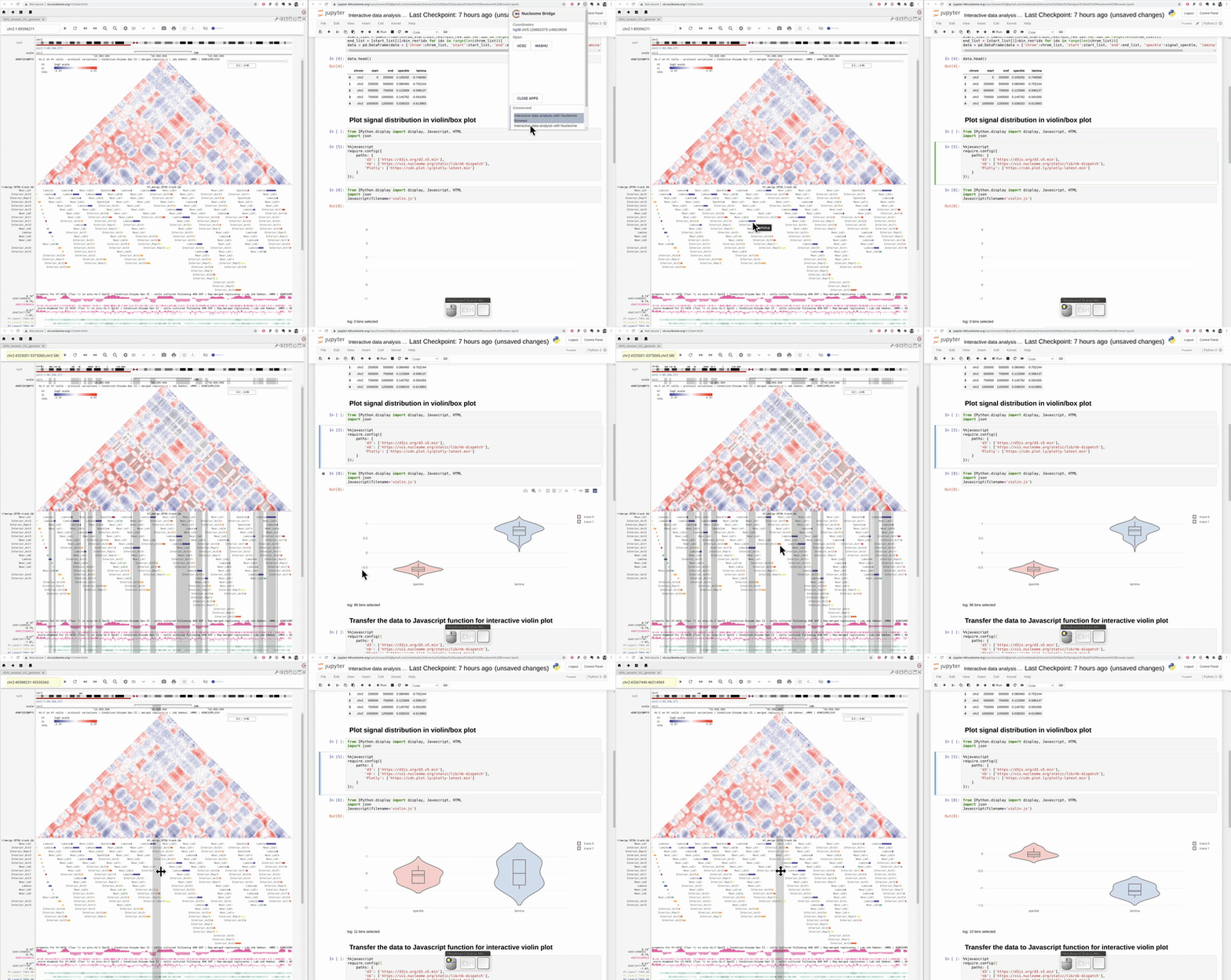
Fig. 66 Interactive data exploration in 4DN DCIC Jupyter notebook
Link to HiGlass
We also create a customized web page to link the HiGlass session with Nucleome Browser. You can access this Customized web page through http://vis.nucleome.org/static/apps/higlass/. You should open this page along with the Nucleome Browser or access it using the Customized web page panel.
When you navigate on the genome browser, the HiGlass viewer will also update its genomic coordinates accordingly. The synchronized highlight is also supported as shown in the animation below.
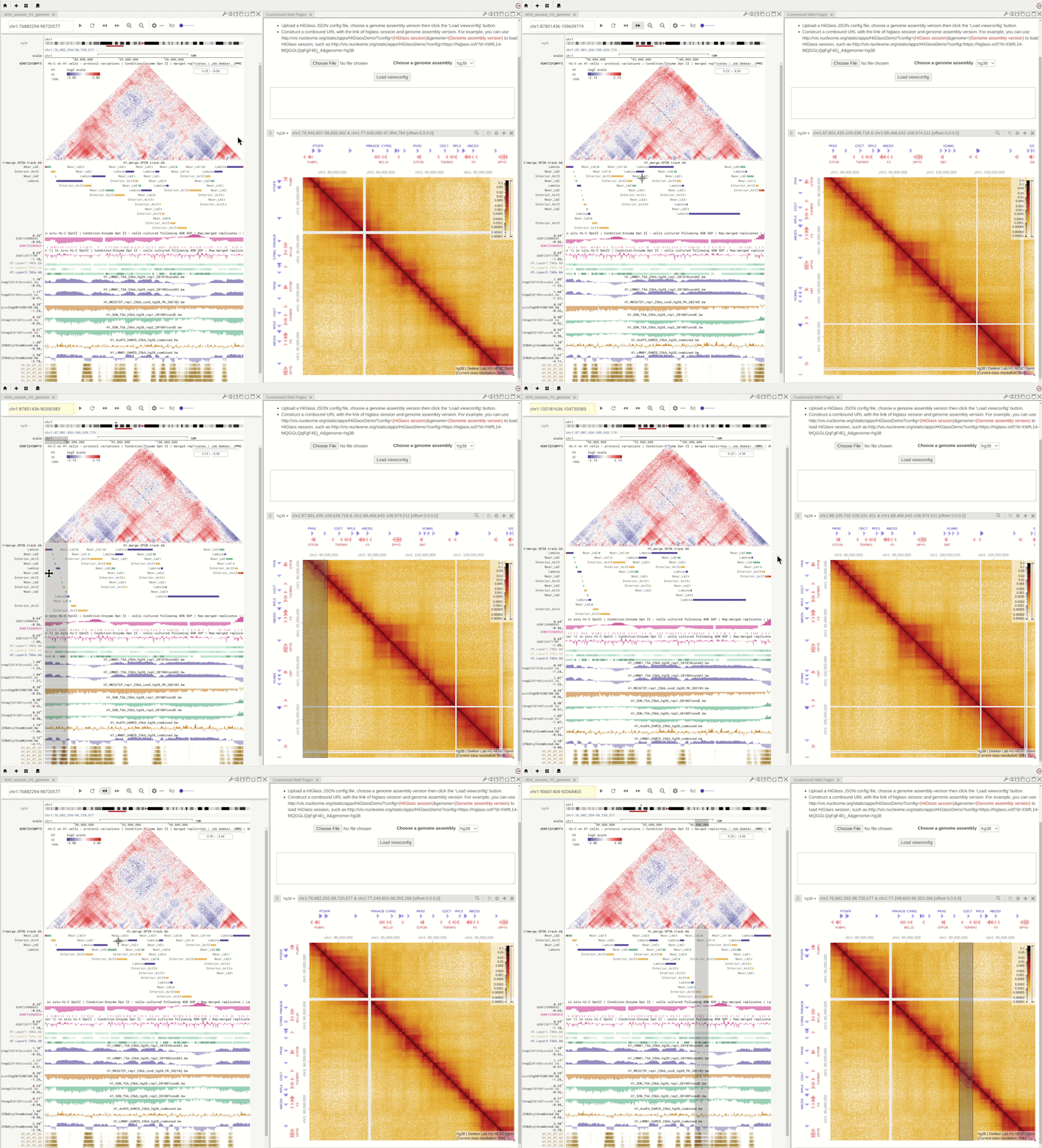
Fig. 67 Use customized web page to link HiGlass with Nucleome Browser
Upload HiGlass configuration file
You can also upload a HiGlass config JSON file. For example, the animation below shows that you can upload a config file downloaded from the 4DN DCIC web portal. It will then link with Nucleome Browser with synchronized navigation and highlight.
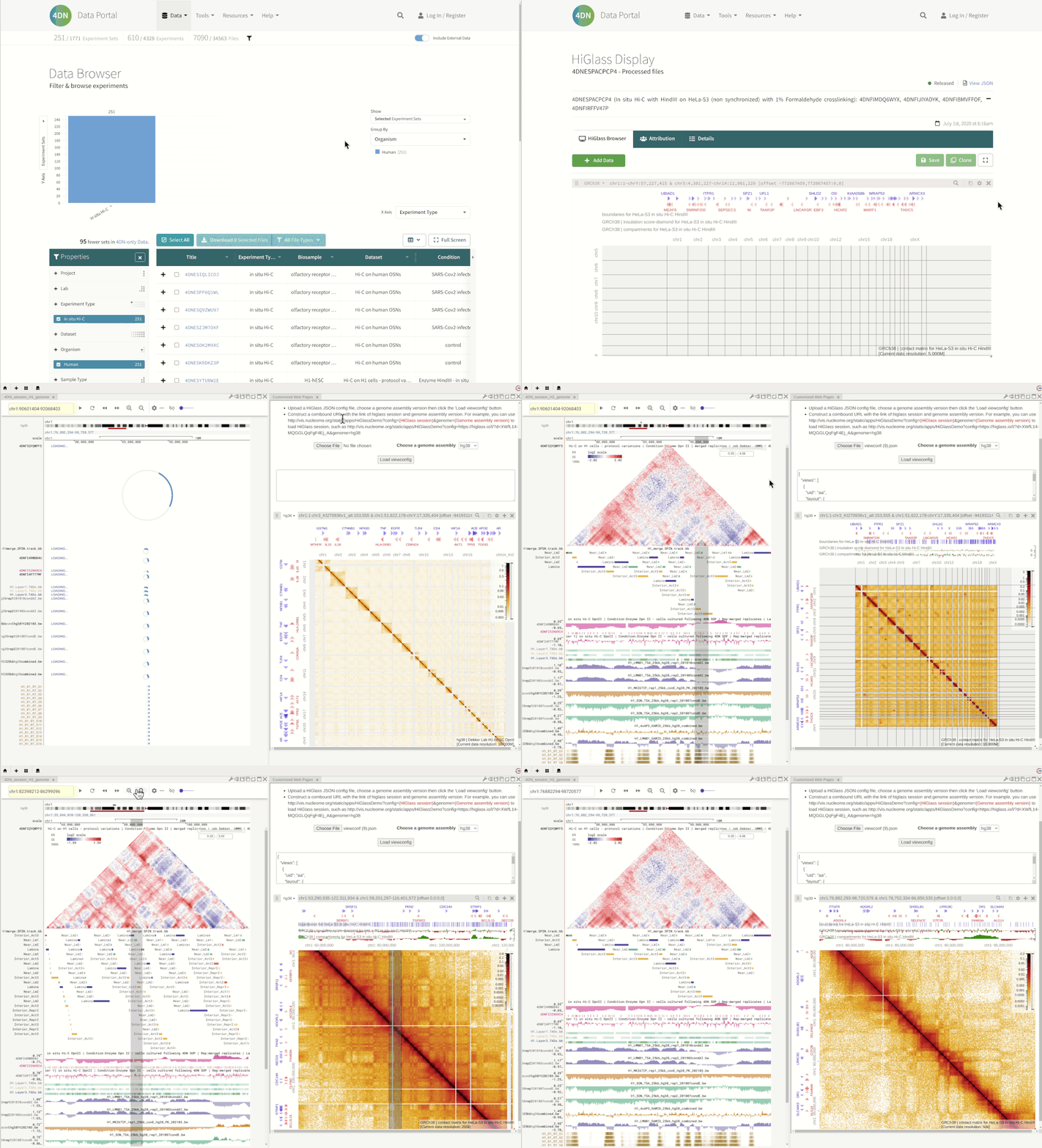
Fig. 68 You can upload your HiGlass configuration file to view your HiGlass session
Put HiGlass link as URL parameter
Another way to restore an existing HiGlass session is to construct a compound URL in the input URL. For example, you can use http://vis.nucleome.org/static/apps/higlass?config=<HiGlass session>&genome=<Genome assembly version>&channel=<Channel ID> to load a HiGlass session. You should replace <HiGlass session> with the HiGlass share link and replace <Genome assembly version> with supported genome version (e.g., hg19, hg38, mm10, etc.). <Channel ID> is an optional parameter. You can also change channel ID in the text input box on the top-right. The advantage of this method is that when you share the Nucleome Browser session with others the shared session also includes the HiGlass session link. The following example shows that you can also create two customized pages and show different HiGlass sessions in each panel. The flexible layout feature of Nucleome Browser thus provides a convenient way to compare different datasets even if the datasets are hosted in external data portals such as different HiGlass servers.
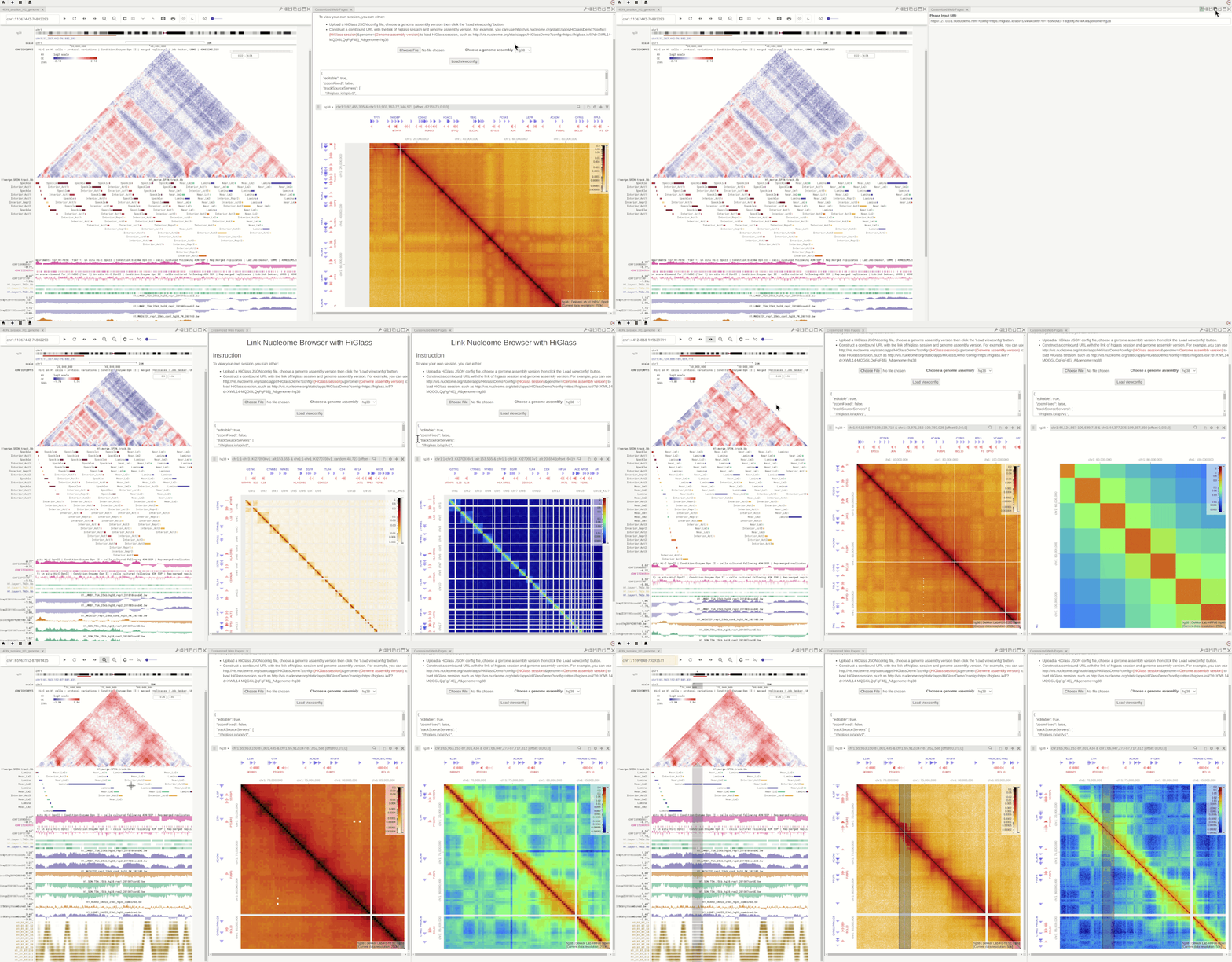
Fig. 69 You can also view the HiGlass session by attaching the HiGlass session link as parameters in the URL
Drag and Drop feature for DCIC web portal
We also provide a convenient drag and drop for any HiGlass visualization pages on the 4DN DCIC web portal. In a HiGlass Display page (e.g., URL looks like https://data.4dnucleome.org/higlass-view-configs/ae89f1b2-bf71-42db-bee5-e3f7e8b6b590). You can use the mouse left button to drag the View JSON link to our HiGlass viewer page and drop it on the target box (The area in red or blue color). The HiGlass viewer page will then fetch the HiGlass configuration file automatically so that you do not need to download and upload JSON file manually.
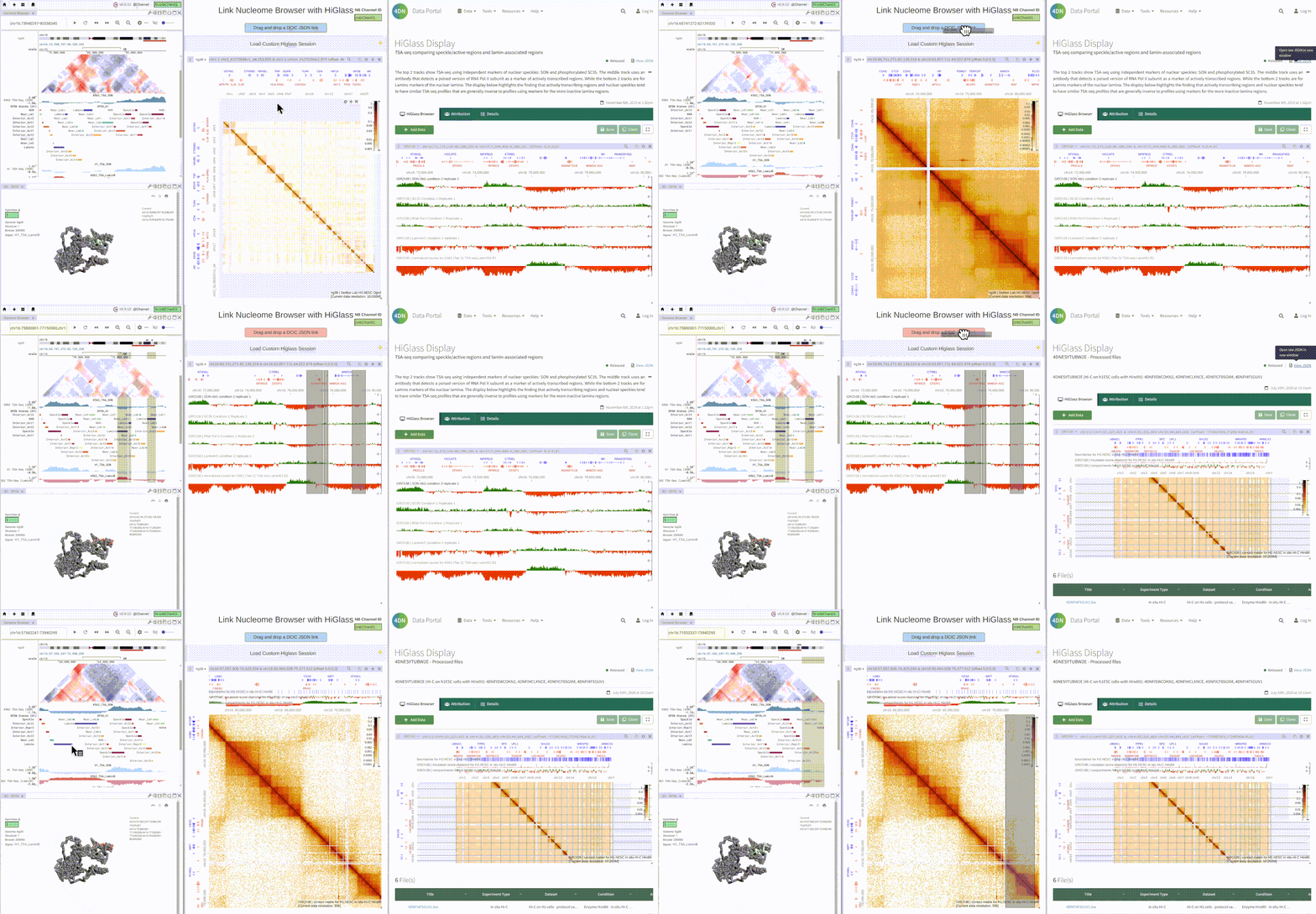
Fig. 70 You can use the drag and drop feature to easily visualize any HiGlass displays on the 4DN DCIC web portal. HiGlass viewer then can synchronize with the Nucleome Browser such that you can use the Nucleome Browser to control the navigation on the HiGlass and also show highlighted region on the HiGlass.